ListForge just shipped AI background removal for item photos, on the web app and the mobile app. Tap one button and your photo becomes a clean cutout of the item on a white background. The update is already live in your account, and on mobile it arrives on its own the next time you open the app. There is nothing to install.
The photo you take is not the photo that sells
If you photograph inventory where it actually lives, you know the problem. The shot of the jacket is also a shot of your garage floor. The sneakers are on carpet. The Pelican case is on a workbench next to three other projects. Buyers scroll past cluttered photos, and some marketplaces flat out want a white background on the primary image.
That used to mean a choice: re-shoot everything against a backdrop, pay for a background removal tool and round-trip every image through it, or just list the messy photo and eat the slower sale.
Now it is one button in ListForge.
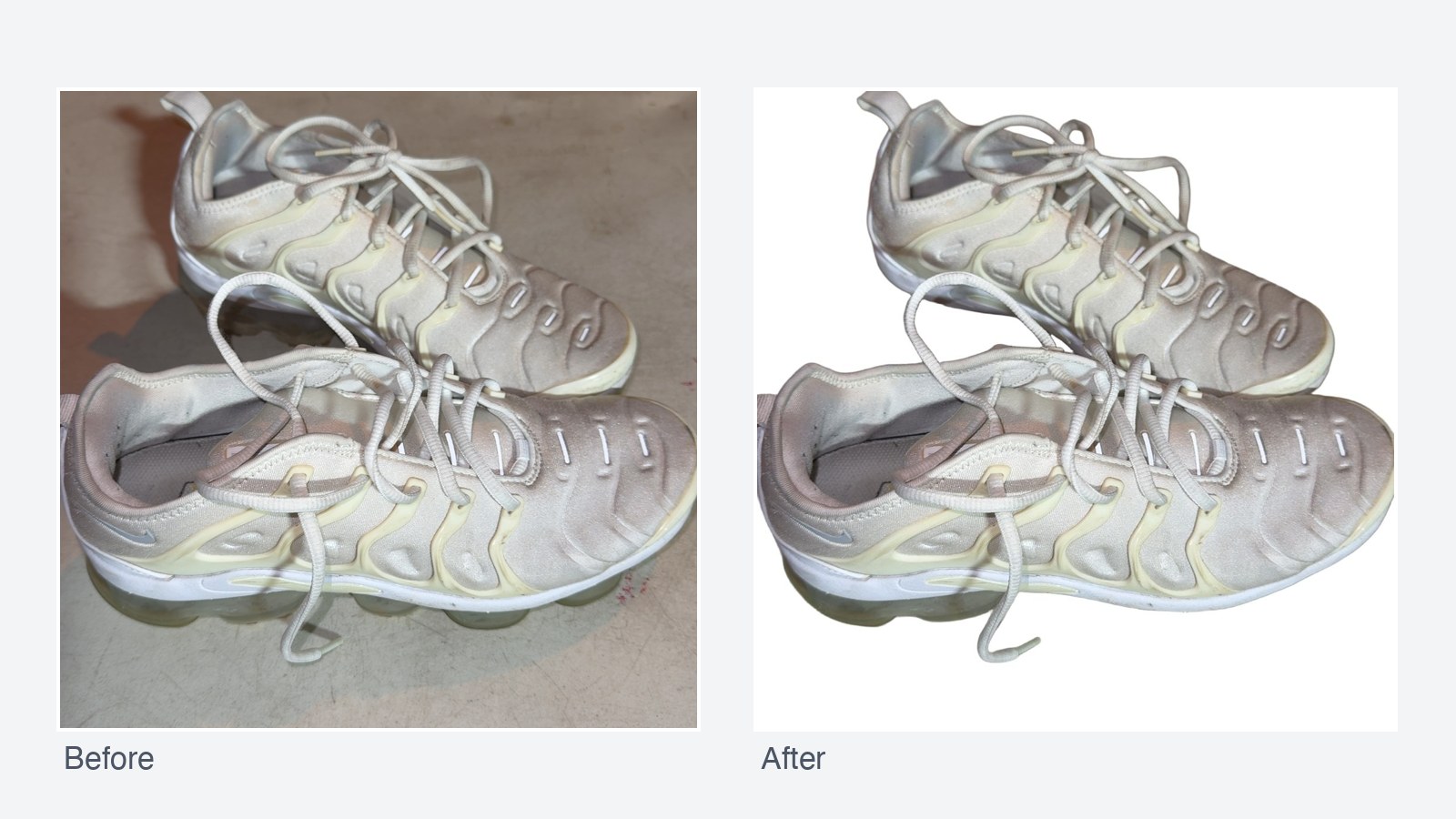
How it works
Open any item, open the photo, and hit Remove background. The AI matting model cuts the item out and puts it on clean white. It runs in the background and the photo updates when it is done, usually within a few seconds.
Want the whole item done at once? Clean all runs every photo on the item in one go.
A few details we got right on purpose:
- Your original is never gone. The pre-cleanup photo is kept alongside the cutout. Restore is one tap and free, forever.
- You only pay when it works. Each cleaned photo costs 5 credits, charged only when the removal succeeds. If the model cannot produce a good cutout, the photo is untouched and you are not charged.
- It knows when it failed. A cutout that kept almost nothing, or removed almost nothing, is treated as a failure and discarded rather than saved over your listing photo.
Set it and forget it
Manual cleaning is the start. In your organization settings you can turn on automation so every new photo is cleaned as it lands, before you ever look at it. You choose the scope: every photo, or just the primary listing photo. You can set a daily credit cap so the automation never spends more than you want, and photos arriving through marketplace import stay untouched unless you opt them in.
What it does not do yet
This is background removal, not photo studio magic. It will not fix lighting, straighten the shot, or hide flaws, and we think that last part is a feature: your item photos should show the item honestly, wear and all. Occasionally a very busy shot will fail to cut cleanly. When that happens you keep your original and your credits.
Open any item and try it on your worst photo. That is the fastest way to see it.